ChatGPT Dot in Slack as your assistant (OpenAI Dots channels)
Run OpenAI Dots / ChatGPT Dots in Slack: DMs, channel mentions, bounded watches, Enterprise permissions—grounded in official Channels docs.
Who this is for
You want your ChatGPT Dot in Slack as a personal assistant: DMs for decisions, mentions in project channels, and bounded watches—without treating Slack like a free inbox connector.
Facts to keep straight
From Message your dot and Meet dots:
- You reach the same Dot in ChatGPT, Slack, Teams, or a call; switching channels does not reset its saved notes.
- Slack threads show Slack messages; they do not mirror every ChatGPT message. The Dot can still use relevant context across channels.
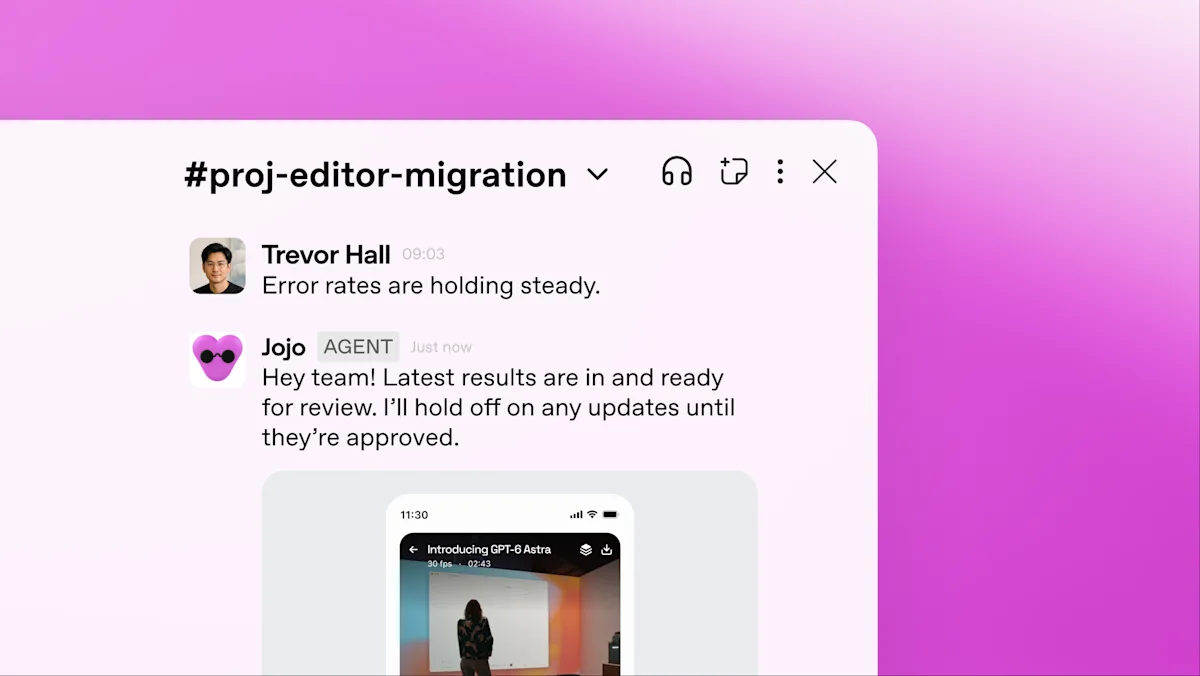
- In Slack you can DM the Dot or mention it in a channel you’ve added it to.
- By default it responds to you; you can instruct it to engage with others. Permissions and safeguards still apply.
- Before sharing information from a private conversation into a channel, it checks you’ve allowed it.
- Adding the Dot to a channel alone does not start monitoring. Tell it which channels/events to watch and ask it to confirm the recurring task.
- Slack is a contact method. It does not grant Gmail, Drive, GitHub, or local-computer access—connect those separately (Connect computers and apps).
Enterprise / workspace
On ChatGPT Enterprise, a workspace owner must enable Use dots (Beta) and Add dots to Slack and Microsoft Teams before members can connect Slack. If the Slack workspace requires app approval, a Slack owner/app manager must approve the install. Only the Dot’s owner can direct it; other people’s DMs or mentions do not start work for that Dot. When it posts in a channel, other members can see those messages. Phone messaging (iMessage / RCS / WhatsApp) is unavailable for Enterprise at launch (Manage dots in ChatGPT workspaces).
Setup checklist
- Finish Dot creation on desktop (getting started).
- Open the Dot profile → Add → connect Slack; verify the workspace name and the Slack handle on the profile button (for example
@your-dot). OpenAI Dots — TechTiff shows a profile with the Slack handle and cloud computer listed. - Add the Dot to the target channel(s); send a DM first to confirm identity.
- Connect any apps the assistant needs (Calendar, Gmail, Drive) separately.
- State routing rules: routine progress in ChatGPT; decisions in Slack (official example pattern).
Assistant patterns that work
1) Decision inbox (DM)
In Slack DM, treat messages from me as high priority. Summarize open decisions with owner and due date. When I paste a thread, extract asks for me and draft a reply for review—don’t send outside Slack unless I approve.
2) Channel watch (bounded)
Each weekday at [time] [timezone] for the next [N] weeks, check #[channel] for [project] updates about [topics]. Keep a dated list of decisions, open questions, and owners. Message me in Slack only when a deadline is at risk or you need a decision. Confirm the schedule.
3) Meeting follow-up from Slack
When I mention you after a standup in #[channel], capture action items with owners and due dates, then draft a short recap for my review. Prefer linking back to the Slack message.
4) Cross-channel context
Keep routine research notes in ChatGPT. Bring budget or vendor decisions to me in Slack DM. Never paste private vendor pricing into a public channel without asking.
Usage
Dot chats (including Slack) do not burn ChatGPT message quotas. Work/Codex tasks the Dot starts still meter—see pricing.
Related
- Setup tutorial: Dots + Slack
- Integrations index · Travel planner use case · Email triage
- Features